
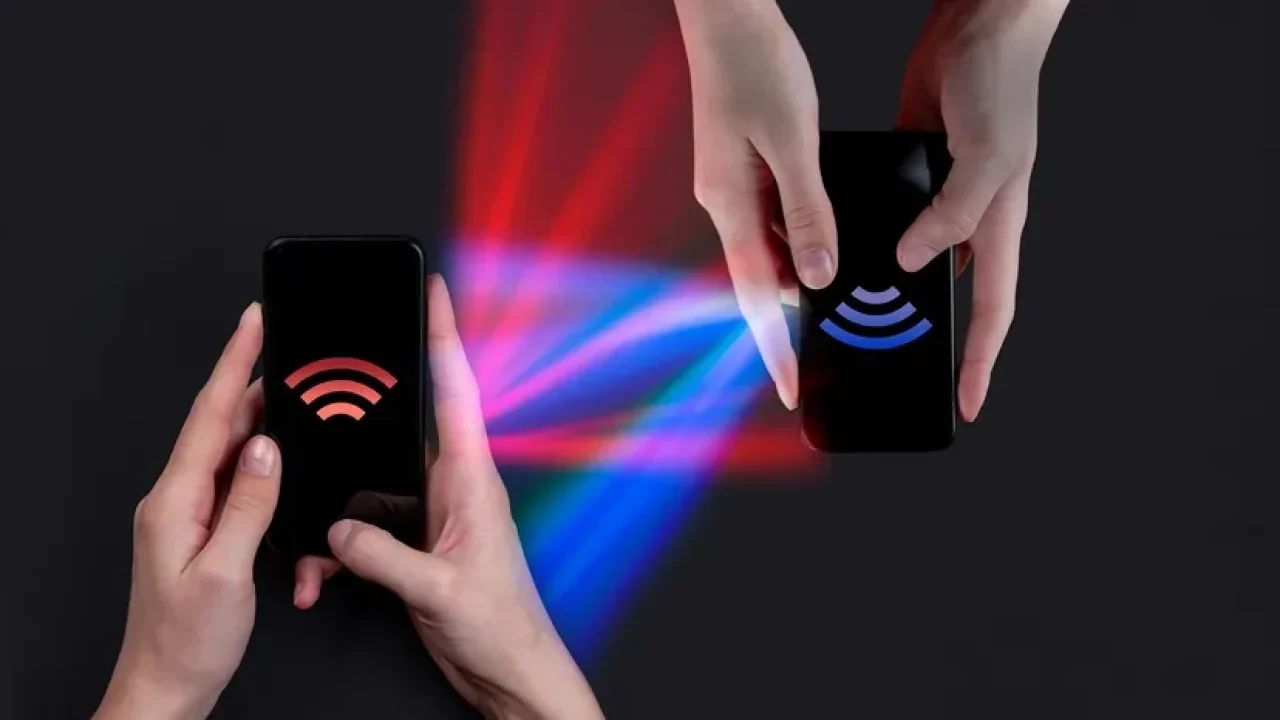
Moving to a new phone is easiest when you choose the right transfer path before you start. This tutorial shows how to transfer all data from one phone to another using built-in Android, iPhone, cloud, cable, and app-based options. If you are upgrading to one of the latest mobile phones, you’ll also want to confirm which transfer method your new model supports before you erase your old device. You’ll also see what usually transfers, what may need separate setup, and how to fix common phone data transfer problems without wiping your old phone too soon.
What is the best way to transfer data from one phone to another?
The best method depends on the two phones you have: Android to Android, iPhone to iPhone, Android to iPhone, or iPhone to Android. In most cases, the recommended route is the setup assistant on the new device because it can copy accounts, settings, photos, messages, apps, and other supported data in one guided flow. Apple recommends Quick Start, iCloud, or a computer backup for iPhone-to-iPhone transfers, while Google’s Android setup can copy apps and data from another Android or iPhone during setup. (support.apple.com)
If both phones support a cable connection, use it when you want a steadier transfer, especially for large photo libraries or weak Wi-Fi. Wireless transfer is convenient, but it can slow down if the phones are far apart, low on battery, or competing with other network traffic. Cloud restore is useful when the old phone is broken, missing, or already reset, but it only restores what was backed up.
Quick method guide:
Old phone | New phone | Best starting method |
|---|---|---|
Android | Android | Android setup assistant, cable, Wi-Fi, or manufacturer tool |
iPhone | iPhone | Quick Start, iCloud backup, or computer backup |
Android | iPhone | Move to iOS during iPhone setup |
iPhone | Android | Android setup assistant with cable or supported wireless flow |
Any phone | Same ecosystem | Cloud backup if direct transfer is unavailable |
Get both phones ready before you start
A smooth phone data transfer starts with preparation. Charge both devices, connect to a reliable Wi-Fi network, and keep your account passwords nearby. If you use two-factor authentication, make sure you can receive verification codes before moving your SIM, eSIM, or messaging apps.
Do not erase your old phone until you have checked the new one. Some items, such as banking apps, authenticator apps, work profiles, downloaded music, and app-specific files, may require extra sign-in or manual reactivation. Apple also notes that iPhone setup methods may involve your Apple Account password, SIM or eSIM steps, and an existing backup when restoring from iCloud or a computer. (support.apple.com)
Before you begin, use this checklist:
Update both phones so transfer tools and security checks work correctly.
Back up the old phone to Google, iCloud, a computer, or the manufacturer’s backup tool.
Check storage on the new phone and delete unnecessary downloads if space is tight.
Keep both phones plugged in or well charged during the transfer.
Know your passwords for Google, Apple, email, WhatsApp, banking, and work accounts.
Keep your old SIM available until calls, texts, and mobile data work on the new device.
Turn off iMessage if leaving iPhone so texts do not keep routing to Apple services.
1. Transfer data from Android to Android
To learn how to transfer data from Android to Android, begin on the new phone’s first setup screen. Choose the option to copy apps and data, then follow the prompts to connect your old Android phone. Depending on your devices, Android may recommend wireless transfer or ask you to connect the phones with a cable if that is the better available method. (support.google.com)
When prompted, sign in to your Google Account and select what you want to copy. Typical choices include contacts, messages, call history, photos, videos, apps, device settings, and some app data. If your phone brand offers its own migration app, such as Samsung Smart Switch for Galaxy devices, it can be useful for moving content from an older Galaxy or another compatible phone; Samsung says Smart Switch can also be used after setup for photos, files, and other data. (samsung.com)
Follow these steps:
Turn on the new Android phone. Select your language, region, and network.
Choose to copy apps and data. Do not skip this screen unless you plan to restore later.
Connect the old phone. Use the suggested cable, adapter, QR code, or Wi-Fi method.
Confirm the old phone. Unlock it and approve the transfer request.
Choose the data to copy. Include only what you need if storage is limited.
Keep both phones nearby. Do not unplug the cable, close setup, or power off either device.
Finish setup and update apps. Open the Play Store and let apps download or update.
After the transfer, open your core apps and confirm their content. Messaging apps may restore chats only after you open the app and complete its own restore process. Work or school-managed phones may block some data from transferring, so contact the device administrator if business apps or profiles are missing.
2. Transfer data from iPhone to iPhone
For iPhone-to-iPhone transfers, use Quick Start if you still have the old iPhone. Place the phones close together, keep Wi-Fi and Bluetooth on, and follow the prompt that appears on the old iPhone. Apple says Quick Start can set up a new iPhone automatically, and you can either transfer directly from the previous device or download apps and data from iCloud. (support.apple.com)
Direct transfer is helpful when you want the new iPhone to resemble the old one as closely as possible. iCloud restore is convenient because apps and data can continue downloading in the background, letting you start using the phone sooner. A computer backup through Finder, the Apple Devices app, or iTunes is another option when you prefer a local backup or have limited internet access. (support.apple.com)
Use this sequence:
Back up the old iPhone. Use iCloud or a computer so you have a fallback.
Turn on the new iPhone. Place it near the old iPhone.
Start Quick Start. Follow the animation and verification prompts.
Connect to Wi-Fi or cellular. Activate service if the setup asks.
Set up Face ID or Touch ID. This protects the new device before data finishes moving.
Choose direct transfer or iCloud restore. Pick direct transfer when you can wait with both phones together; choose iCloud when you want background downloading.
Keep both phones powered. Apple recommends keeping devices near each other and connected to power until migration completes. (support.apple.com)
Once the new iPhone is ready, check Photos, Messages, Notes, Contacts, Wallet, and your most important apps. Some apps require a fresh login, and payment cards may need to be added or verified again.
3. Transfer data from Android to iPhone
If you are searching for how to transfer data from Android to iPhone, Apple’s Move to iOS process is the usual starting point. It works during new iPhone setup, so if the iPhone is already set up, you may need to erase it and restart setup or move content manually. Apple’s guidance says to place the devices near each other, keep Wi-Fi on, plug both into power, and make sure the Android content will fit on the new iPhone. (support.apple.com)
Move to iOS can help transfer common content such as contacts, message history, photos, videos, mail accounts, calendars, and supported free apps when available in both app stores. Some items still need manual attention. Paid apps, local app data, downloaded media, device-specific settings, and some authentication tools may not transfer cleanly between operating systems.
Follow these steps:
Prepare the Android phone. Turn on Wi-Fi, update Chrome if you want bookmarks moved, and plug in the device.
Start the iPhone setup. Continue until you reach the transfer screen.
Choose the Android migration option. Open Move to iOS on Android if your setup flow requires it.
Pair the phones. Enter the code shown on the iPhone or follow the on-screen wireless pairing flow.
Select the content to move. Keep the phones still and close until the iPhone says the process is complete.
Finish iPhone setup. Download apps, sign in, and check messages, contacts, photos, and calendars.
Move remaining items manually. Use cloud apps, email exports, or app-specific restore tools for anything missing.
If you transfer your phone number too, confirm calls, SMS, and mobile data before resetting Android. For eSIM transfers from Android to iPhone, support can depend on the carrier and device manufacturer, so you may need carrier help if the setup flow does not offer a direct option. (support.apple.com)
4. Transfer data from iPhone to Android
When moving from iPhone to Android, start with the new Android phone’s setup assistant. Google supports copying data from an iPhone or iPad to a new Android device, often using a cable, and some newer devices may offer an upgraded wireless process. (support.google.com)
A cable transfer is usually the most straightforward option because it creates a direct connection between the phones. You may be asked to trust the Android device from the iPhone, sign in to your Google Account, and choose which data to copy. After setup, apps from the App Store will not move as iOS apps, but the Android setup can help you find Android versions where available.
Use these steps:
Update and back up the iPhone. Keep iCloud backup available as a safety net.
Turn on the new Android phone. Choose to copy data during setup.
Connect the phones. Use the required cable and adapter, or follow the wireless instructions if offered.
Trust the connection. Unlock the iPhone and approve access when prompted.
Choose content. Copy contacts, calendars, photos, videos, messages, and other supported items.
Sign in to apps again. Install Android versions of your key apps and restore app-specific data where possible.
Turn off iMessage. This helps ensure future texts reach your Android phone as SMS or RCS where supported.
If the cable does not work, try another cable, reverse the adapter if applicable, clean the charging port gently, or use the wireless or cloud option suggested by the setup assistant. Google’s troubleshooting guidance recommends retrying after charging the phones and using Wi-Fi transfer if cable connection fails. (support.google.com)
What data will and will not transfer?
Most phone data transfer tools are designed to move everyday content, not every hidden file on the device. You can usually expect contacts, calendars, photos, videos, messages, call history, and many apps to move when the devices and accounts support them. However, exact results vary by phone model, operating system, app permissions, storage space, and whether the phone is managed by a workplace or school.
Plan for these categories:
Usually transfers: contacts, photos, videos, calendars, many messages, call logs, Wi-Fi settings, and compatible apps.
May need extra steps: WhatsApp or other chat apps, authenticator apps, banking apps, email accounts, music downloads, and health data.
Often does not transfer directly: paid app licenses across Android and iOS, app logins, some in-app files, secure folders, work profiles, and DRM-protected downloads.
Needs separate confirmation: SIM or eSIM activation, mobile data plans, voicemail, payment cards, and two-factor authentication methods.
The practical rule is simple: transfer first, then verify. Open the apps you rely on daily before erasing or trading in the old phone. If an app stores data in its own cloud account, signing in may restore more content than the phone migration tool itself.
If you’re upgrading: how to compare mobile phones for an easier transfer
Many people only think about data transfer after they buy a device, but a few specs and platform choices can make setup easier. If you are shopping the latest mobile phones, take two minutes to compare mobile phones with migration in mind, not just camera and display quality.
Operating system and ecosystem: Staying Android-to-Android or iPhone-to-iPhone is usually the fastest path because the built-in assistants are designed for same-platform transfers.
Storage and file size needs: If you shoot lots of video, a higher-capacity model reduces the chance you will have to skip data during transfer.
Port and cable support: A reliable cable transfer can be faster for large libraries, but you need compatible ports and adapters.
eSIM and carrier transfer support: Some phones and carriers offer smoother eSIM moves than others, which can reduce downtime for calls and mobile data.
Cloud services you already use: If your photos, notes, and documents are already in a cross-platform cloud app, switching brands can be less painful.
5. Verify the new phone before wiping the old one
After learning how to transfer mobile data from one phone to another, the final step is quality control. A transfer can look complete while a few important items are still downloading, waiting for login, or blocked by account security. Spend 20 minutes checking the new phone now to avoid hours of recovery later.
Use this verification checklist:
Check contacts and messages. Search for several recent conversations and important people.
Open your photo library. Confirm recent photos, albums, and videos are present.
Test calls and texts. Send and receive a message, then make a call.
Test mobile data. Turn off Wi-Fi and load a webpage or map.
Open essential apps. Check banking, email, work, travel, password manager, and chat apps.
Confirm two-factor authentication. Make sure you can receive codes or use your authenticator.
Review storage. Ensure the new phone has enough free space for app updates and future photos.
Keep the old phone for a few days if possible. Only reset it after you are confident everything important is safe.
Fix common transfer problems
If the transfer stalls, first check power, distance, and connectivity. Keep both phones awake, close together, and charging. If you are using a cable, unplug it, wait a few seconds, reconnect firmly on both ends, and try another cable if the phone reports a connection problem. Google’s Android transfer troubleshooting also notes that a cable transfer can often be restarted after charging the devices if power or connection was lost. (support.google.com)
If you skipped setup transfer, look for a ‘finish setup’ or ‘copy data’ option in the new phone’s Settings. Some Android devices allow transfer after setup, while others may require a factory reset to restart the full migration flow. On iPhone, you can restore from iCloud or a computer backup, but restoring a full backup generally replaces what is currently on the device.
When only a few items are missing, do not repeat the entire transfer immediately. Instead, restore those items from their original services: Google Photos, iCloud Photos, OneDrive, Dropbox, Gmail, Outlook, WhatsApp, or the app’s own backup screen. This is often faster and safer than resetting a phone that is mostly correct.
Finish with a clean handoff
Once the new phone is working, leave the old phone connected to Wi-Fi for a short time so any final cloud syncs can complete. Then sign out of accounts only after you have verified the new device. If you plan to sell, recycle, or give away the old phone, perform a proper factory reset from the device settings so personal content is removed.
The safest answer to how to transfer all data from one phone to another is to combine three habits: back up first, use the built-in transfer assistant for your phone pair, and verify before wiping. Whether you need Android to Android, iPhone to iPhone, Android to iPhone, or iPhone to Android, that sequence gives you the best chance of moving your data with fewer surprises.