
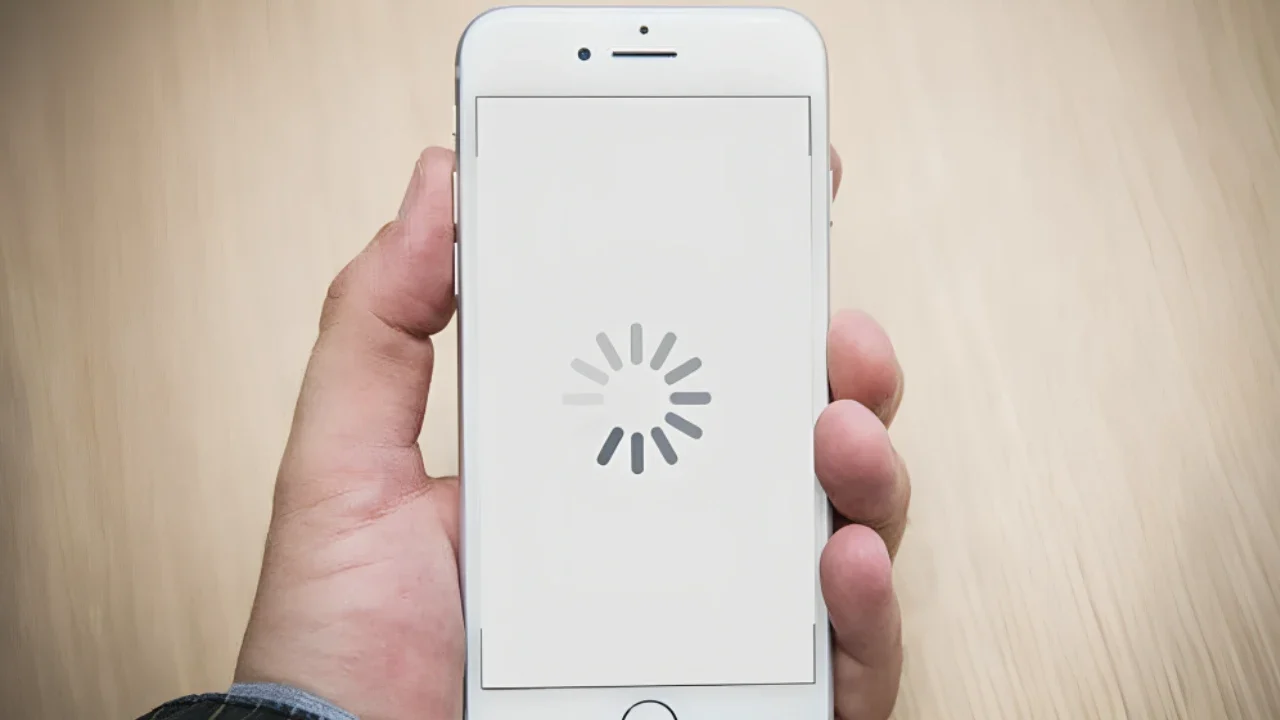
A lagging phone can make simple tasks feel frustrating, from opening messages to switching apps or taking a photo. Most phone lagging problems come from overloaded storage, too many background apps, outdated software, weak battery health, network issues, or apps that are behaving badly. The good news: you can usually improve performance with safe, practical steps before deciding whether to repair, reset, or replace your device.
Why is my phone lagging?
Your phone is lagging because something is limiting how quickly it can process tasks, access storage, manage memory, or keep apps running smoothly. That “something” may be a nearly full storage drive, low available memory, an overheating processor, an outdated operating system, a weak battery, a poor internet connection, or a specific app causing slowdowns.
If you are asking, “why is my phone lagging so bad?” start with the basics instead of assuming the phone is finished. A device can feel slow even when the hardware is still usable, especially if it has months of cached files, unused apps, heavy widgets, and background activity stacked up. Work through the steps below in order, because the safest fixes are also the easiest to reverse.
What should you do before trying fixes?
Before changing settings, protect your data and avoid risky shortcuts. Back up important photos, contacts, messages, notes, and files using your phone’s built-in backup tool or a trusted cloud service. Do not install “miracle speed booster” apps from unknown sources, do not root or jailbreak your phone to improve speed, and do not delete system files you do not understand.
Use this quick preparation checklist:
Charge your phone to a safe level before updates, backups, or resets.
Connect to reliable Wi-Fi if you plan to update software or back up large files.
Save important login details so you can access apps again if you sign out.
Check warranty or repair coverage before attempting anything beyond normal settings.
Avoid overheating by removing the phone from direct sunlight and pausing heavy tasks if it feels hot.
Follow these steps to fix phone lag
Restart your phone first
A restart clears temporary processes, refreshes memory, and stops apps that may be stuck in the background. It sounds basic, but it is one of the safest ways to deal with sudden phone lagging after gaming, streaming, navigation, or a long period without rebooting.
Power the phone off fully, wait a short moment, then turn it back on. After it restarts, give it a minute to reload essential services before testing performance. If the lag disappears, the cause was likely temporary memory pressure or a misbehaving app session.
Free up storage space
Low storage is one of the most common reasons for phone lagging problems. Phones need available space for app updates, temporary files, photos, system tasks, and normal background operations. When storage is nearly full, apps may open slowly, the keyboard may stutter, and the camera may take longer to save images.
Start by deleting downloads you no longer need, duplicate photos, old videos, unused offline maps, large message attachments, and apps you have not opened in months. Use the phone’s built-in storage manager if available. Many modern devices also include AI-powered storage suggestions that identify duplicate media, blurry photos, large files, and rarely used apps so you can review them before deleting anything.
Be careful with deletion. Remove personal files only after backing them up, and avoid clearing data from apps unless you understand that it may remove local settings, downloads, or saved content.
Close or limit background apps
Too many apps running in the background can consume memory, battery, mobile data, and processor attention. Social apps, navigation tools, games, video platforms, and shopping apps may continue syncing or refreshing even when you are not actively using them.
Open your phone’s battery or app settings and look for apps using unusual background activity. Limit background refresh for apps that do not need instant updates. You can also remove unnecessary widgets from the home screen, because widgets often refresh information automatically.
Do not force-close every app repeatedly throughout the day. Phones are designed to manage recent apps, and constantly reopening essential apps can sometimes waste more power. Focus on apps that are clearly draining resources or behaving strangely.
Update your software and apps
Outdated software can cause compatibility issues, crashes, security problems, and performance bugs. System updates often include stability improvements, while app updates can fix memory leaks or lag caused by older versions.
Check for operating system updates in your phone’s settings, then update apps through the official app store. Use Wi-Fi and keep the phone charged during updates. If you are using an older phone, read update notes when available and make sure you have enough free storage before installing a major update.
If lag started immediately after an update, give the phone some time to finish background indexing and app optimization. If the problem continues, check whether a smaller follow-up update is available or whether one specific app is causing the slowdown.
Use built-in battery and performance tools
Battery health and performance are connected. When a battery ages, overheats, or struggles to provide stable power, the phone may reduce performance to prevent shutdowns or protect components. Heavy battery drain can also reveal apps that are overworking the device.
Open your battery settings and review usage by app. Turn on adaptive battery features if your phone offers them. AI-powered battery management can learn which apps you use often, reduce background activity for apps you rarely open, and recommend settings that extend battery life without making you manage every detail manually.
Keep safety in mind. Do not use damaged chargers, swollen batteries, or cables with exposed wiring. If the phone becomes unusually hot, smells odd, shuts down randomly, or the battery looks swollen, stop using it and contact the manufacturer, carrier, or a qualified repair provider.
Check your internet connection
Sometimes a phone feels slow because the connection is slow, not because the device is failing. Apps that rely on the internet may freeze, buffer, or respond late when Wi-Fi is weak or mobile signal is poor. This can make you think the whole phone is lagging.
Test a few offline actions, such as opening settings, typing a note, or browsing photos already stored on the device. If offline tasks feel normal but websites and apps are slow, troubleshoot the connection. Move closer to the router, toggle airplane mode off and on, restart the router if it is your network, or switch between Wi-Fi and mobile data.
Avoid entering passwords or payment details on unknown public Wi-Fi networks while troubleshooting. If you must use public Wi-Fi, use secure websites and avoid sensitive transactions.
Identify problem apps
A single poorly optimized or corrupted app can make the whole phone feel unstable. Warning signs include lag after opening one app, repeated crashes, sudden battery drain, overheating, or pop-ups that started after a recent install.
Uninstall apps you do not trust, especially apps installed outside official stores. For apps you want to keep, clear the cache if your phone allows it, update the app, or reinstall it from the official store. If the issue began after installing a new keyboard, launcher, antivirus, wallpaper app, or game booster, test the phone after removing it.
On-device assistants enabled by AI can help here. Depending on your phone, the assistant may summarize performance alerts, guide you to storage or battery settings, suggest app restrictions, or help you search settings with natural language. Treat these suggestions as helpful guidance, but review each action before confirming it.
Reduce visual effects and heavy features
Animations, live wallpapers, high refresh settings, always-on displays, and complex launchers can make older or budget phones work harder. These features look good, but they may contribute to phone lagging when storage, memory, or battery health is already strained.
Switch to a still wallpaper, remove unnecessary home screen widgets, and use the default launcher if a custom one feels slow. You can also reduce motion or animation effects in accessibility or developer-related settings, depending on your device. Stay with settings provided by the phone; do not install untrusted tools that promise extreme performance changes.
Run automated diagnostics
Many phones include built-in diagnostic tools in settings, support apps, or manufacturer care apps. These tools may check battery condition, storage, memory, sensors, temperature, charging, and system stability. Some use AI techniques to detect patterns, flag unusual app behavior, or recommend next steps based on device usage.
Run the official diagnostic tool before contacting support or resetting the phone. Save any results or error messages, because they can help a technician understand the issue. If diagnostics point to battery failure, overheating, or hardware problems, do not keep pushing the phone through heavy use just to test it.
Reset settings or perform a factory reset only if needed
If nothing else works, reset network settings, app preferences, or all settings before considering a full factory reset. These options can fix configuration problems without immediately erasing everything. Read each reset screen carefully so you know what will change.
A factory reset should be the last software step because it removes personal data from the device. Back up everything important, confirm your account login details, and make sure you understand how to restore your data afterward. If phone lagging continues after a clean reset with only essential apps installed, the issue may be hardware-related.
Use AI features without giving up control
AI can make phone maintenance easier, but it should not replace common sense. AI-powered battery and storage management tools are useful because they can spot patterns you may miss, such as apps you rarely use, files taking up unusual space, or background activity that keeps returning. Review recommendations before approving deletions, restrictions, or cloud uploads.
On-device assistants can also reduce the time spent hunting through menus. You may be able to ask for help finding battery usage, checking storage, adjusting display settings, or locating diagnostics. For privacy and safety, use built-in assistants and official settings whenever possible, and be cautious with third-party apps that request broad access to files, notifications, or accessibility controls.
Automated diagnostics are especially helpful when the lag is inconsistent. Instead of guessing, diagnostics can check device health and provide a starting point. They are not perfect, but they can help you decide whether to keep troubleshooting, contact support, or consider a repair.
Decide whether to repair, replace, or keep troubleshooting
If your phone is several years old, repair or replacement may become more practical than constant troubleshooting. Still, do not rush to buy one of the latest mobile phones just because your current device slowed down for a week. If the lag improves after clearing storage, updating apps, and managing battery settings, you may get more useful life from the phone.
Replacement makes more sense when the device no longer receives important updates, the battery is failing, repairs cost more than the phone is worth to you, or essential apps no longer run well. When comparing trending mobile phones, look beyond camera hype and check storage capacity, update support, battery life, repair options, and the amount of memory available in the model you can afford.
Keep your phone running smoothly
Once the phone feels better, maintain it with small habits instead of waiting for lag to return. Review storage monthly, uninstall apps you no longer use, keep software current, and pay attention to battery and temperature warnings. Let built-in AI tools help with suggestions, but make the final decision yourself.
The safest fix is the one that protects your data, avoids questionable apps, and uses the tools your phone already provides. Start with a restart, storage cleanup, updates, battery checks, and diagnostics. If those steps do not solve the problem, you will have a clearer reason to contact support, seek repair, or shop confidently for a better device.