

Improving your phone’s battery life is mostly about reducing unnecessary work: screen time, background activity, weak signal searching, location checks, and power-hungry apps. You do not need to turn your smartphone into a basic phone to get better results; a few settings changes and smarter charging habits can make your phone battery last longer through the day and age more slowly over time.
This guide explains how to reduce battery drain in practical steps, why each change works, and when a battery problem may point to something more serious than normal daily use.
Why does your phone battery drain so quickly?
Your phone battery drains quickly when the device is using power for tasks you may not notice: keeping the display bright, refreshing apps in the background, maintaining a poor cellular connection, tracking location, syncing accounts, playing media, or running demanding apps. Battery drain is not caused by one setting alone; it is usually the combined effect of screen use, wireless radios, app behavior, temperature, and battery age.
Takeaway: To improve phone battery life, focus first on the biggest power users: screen, signal, background apps, location, and charging habits.
A phone uses energy whenever it performs work. Some work is obvious, such as streaming video or gaming. Other work is quieter, such as an email app checking for messages, a weather widget updating your location, or your phone repeatedly searching for a stronger signal in a low-coverage area. The goal is not to disable everything, but to remove the tasks that do not meaningfully improve your experience.
Battery age also matters. Lithium-ion batteries gradually lose capacity through normal use, charging cycles, heat exposure, and time. If your phone used to last all day and now dies by mid-afternoon with the same habits, settings can help, but they may not fully restore the battery’s original endurance.
Common signs of avoidable battery drain
Look for patterns before changing every setting at once. A few clues can point you toward the right fix:
Your battery drops quickly when the screen is on, especially outdoors.
The phone gets warm while idle or in your pocket.
Battery falls faster in certain locations, such as an office basement or rural area.
One app appears near the top of battery usage even when you barely opened it.
The battery percentage drops sharply after an operating system update or new app install.
Example: If your phone loses 20% during a commute while using maps, music streaming, Bluetooth, and cellular data, that may be normal heavy use. If it loses 20% while sitting unused on a desk, background activity, weak signal, or a problematic app is more likely.
Start with the screen, the biggest everyday power draw
The display is one of the easiest places to reduce battery drain because it consumes power every time you use your phone. Brightness, screen timeout, refresh rate, always-on display, and notification wake-ups all affect how long your phone battery lasts.
Takeaway: Lowering screen brightness and reducing unnecessary screen-on time usually gives the fastest battery improvement without making the phone harder to use.
Start with adaptive brightness or manual brightness. Adaptive brightness lets the phone adjust to your environment, which is useful if you move between indoor and outdoor spaces. If your phone still stays brighter than needed, lower it manually. A screen that is comfortable indoors does not need to be near maximum brightness.
Next, shorten your screen timeout. If your display stays on for two or five minutes after every interaction, it wastes power many times a day. A timeout of around 30 seconds to one minute works well for many people, though you may prefer longer when reading recipes, instructions, or documents.
Display settings worth checking
Use this quick checklist to make your display more efficient:
Turn on adaptive brightness, or manually keep brightness as low as comfortable.
Reduce screen timeout so the display sleeps sooner.
Disable always-on display if you do not rely on it.
Limit lock screen wake-ups from nonessential notifications.
Use dark mode on phones with OLED-style displays, especially if you often use high brightness.
Lower the refresh rate if your phone allows it and you do not need ultra-smooth motion.
Evidence-based tip: Screens use more power at higher brightness because the display must emit more light. OLED-style screens can also save power when showing darker pixels because those pixels require less illumination than bright ones.
Example: If you check your phone 80 times a day and the screen stays awake for an extra minute each time, that can add more than an hour of avoidable display-on time. Shortening the timeout can reduce that waste without changing how you actively use the phone.
Control background apps before they control your battery
Apps can drain battery even when you are not actively using them. Messaging, social media, email, fitness, shopping, navigation, and cloud backup apps may refresh content, sync data, check location, or send notifications in the background.
Takeaway: The best way to improve phone battery life is not to close every app constantly, but to identify the few apps that behave aggressively and limit their background access.
Modern phones are designed to manage apps efficiently. Repeatedly force-closing everything can backfire because apps may use extra energy relaunching from scratch. Instead, open your phone’s battery settings and look for battery usage by app. The exact menu name varies, but most phones show which apps used the most power over the last several hours or days.
If an app appears high on the list and you used it heavily, that is expected. If it appears high despite little use, adjust its permissions or background behavior. You can often restrict background activity, disable background refresh, turn off unnecessary notifications, or remove the app if it provides little value.
Background app actions that help
Try these in order, starting with the least disruptive:
Review battery usage by app. Find the apps using power when you are not using them.
Disable nonessential notifications. Each alert can wake the screen, trigger vibration, and prompt more phone use.
Limit background refresh. Let apps update when opened instead of constantly refreshing.
Restrict background battery use for problem apps. Use this carefully for apps that do not need real-time updates.
Uninstall or replace battery-heavy apps. If a rarely used app drains power regularly, it may not be worth keeping.
Evidence-based tip: Background refresh uses CPU, network, and sometimes location services. Reducing it lowers the number of times your phone wakes from idle, which can help preserve standby battery.
Example: A travel app may be useful during a trip but unnecessary afterward. If it keeps checking location or sending promotional notifications, restricting or uninstalling it can reduce battery drain without affecting your daily routine.
How can you reduce battery drain from poor signal and connectivity?
Poor signal increases battery drain because your phone works harder to maintain a connection. Cellular radios may raise transmit power, search for towers, switch between networks, or repeatedly attempt data transfer when coverage is weak.
Takeaway: If your battery drops quickly in specific places, the problem may be the signal environment rather than the phone itself.
When you are in a low-coverage area, use Wi-Fi if it is stable and trusted. Wi-Fi often uses less power than cellular data for routine browsing and messaging, especially indoors where cellular signals struggle. If you have no usable signal and do not need calls or data, airplane mode can stop the phone from constantly searching.
Bluetooth and Wi-Fi are usually efficient when idle, so turning them off obsessively may not save much. The bigger gains come from stopping active, unnecessary connections: hotspot mode, continuous navigation, file transfers, or streaming over a weak cellular network.
Connectivity settings to use strategically
Use Wi-Fi calling if your carrier and phone support it and indoor cellular service is poor.
Turn off personal hotspot when you are done sharing data.
Download maps, playlists, podcasts, or videos before travel when possible.
Use airplane mode in dead zones if you do not need to be reachable.
Avoid large downloads or cloud backups on weak cellular signals.
Evidence-based tip: Radios consume more power when signal quality is poor because the phone must work harder to send, receive, and maintain network contact. Reducing network struggle is one of the most overlooked ways to improve phone battery life.
Example: If you work in a building with one bar of service, your phone may drain faster at your desk than at home. Connecting to reliable Wi-Fi, enabling Wi-Fi calling, or using airplane mode during focused work can help.
Location, notifications, and syncing need sensible limits
Location services are useful for maps, rideshares, weather, fitness tracking, and device-finding features, but not every app needs location access all the time. Notifications and syncing also create small bursts of activity that add up across dozens of apps.
Takeaway: Give apps the least permission they need to work well: precise location only when necessary, background access only when useful, and notifications only when they deserve your attention.
Review location permissions and choose options like “while using the app” where available. Weather apps may need approximate location, but a coupon app may not need precise, continuous access. Fitness and navigation apps may require more access while active, but that does not mean every app should receive the same permission.
Notifications affect battery in two ways. First, they wake parts of the phone: screen, vibration motor, sound, network, and app processes. Second, they pull you back into the phone, increasing screen time. Turning off low-value alerts improves battery life and reduces distraction at the same time.
A practical permission cleanup
Set aside ten minutes and review:
Apps with “always” location access.
Apps allowed to use precise location.
Apps sending frequent lock screen notifications.
Email, calendar, cloud storage, and photo backup sync settings.
Widgets that constantly refresh information you rarely check.
Evidence-based tip: GPS, network location, and background sync are useful but power-consuming when used frequently. Limiting permissions reduces repeated sensor and network activity while preserving features that truly need them.
Example: A food delivery app needs your location while you are placing an order. It probably does not need to know your location at all times after the order is complete. Changing that permission can reduce background checks.
Use battery saver modes without waiting for 5%
Battery saver modes reduce power use by limiting background activity, visual effects, automatic syncing, and sometimes performance. Many people wait until their phone is almost dead, but turning battery saver on earlier can help stretch a long day.
Takeaway: Battery saver is most useful before you are desperate, such as before travel, meetings, events, or any day when charging access is uncertain.
On many phones, you can set battery saver to turn on automatically at a chosen percentage. If your phone often struggles after lunch, try enabling it at 30% or 40%. You may notice delayed notifications, slower background updates, or reduced visual smoothness, but core features like calling, messaging, and basic browsing usually remain available.
Low power mode is especially useful when combined with behavior changes. If you turn it on but continue gaming, recording video, using navigation, and streaming over cellular, the gains will be limited. Think of it as a helpful system-wide brake, not a replacement for mindful use.
Good times to enable battery saver
Before a flight, train ride, or long commute.
During conferences, weddings, concerts, or outdoor events.
When traveling in areas with poor signal.
Before a long day of photos, maps, and messaging.
Any time you leave home without a charger or power bank.
Example: If you start a day trip at 65% battery and know you will need maps later, turning on battery saver immediately may preserve enough charge for navigation when it matters most.
Charging habits affect long-term battery health
Daily battery life is about how much power your phone uses today. Battery health is about how much capacity the battery retains over months and years. Heat, repeated deep discharges, and spending lots of time at very high charge levels can all contribute to battery wear.
Takeaway: To protect long-term phone battery health, avoid heat, avoid letting the phone die regularly, and use optimized charging features when available.
You do not need to follow perfect charging rituals. Modern phones include charging management systems, and occasional full charges or low-battery moments are normal. The practical goal is to reduce extremes. If possible, avoid leaving your phone in hot cars, under pillows while charging, in direct sunlight, or running heavy apps while fast charging.
Optimized charging features can learn your routine and reduce time spent at full charge before you unplug. If your phone offers battery health settings, charging limits, or optimized charging, enable them unless they interfere with your schedule.
Simple charging best practices
Charge before the battery reaches zero when convenient.
Avoid prolonged heat during charging.
Remove thick cases if the phone gets hot while charging.
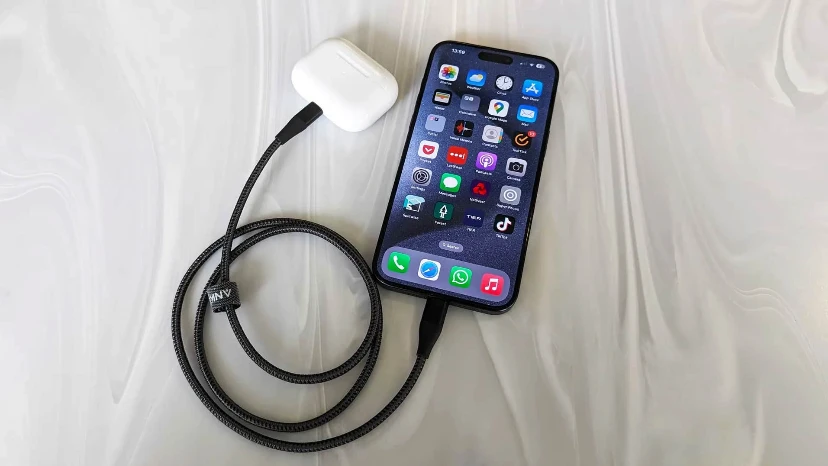
Use reputable chargers and cables.
Turn on optimized charging or battery protection settings if available.
Keep a small power bank for heavy-use days instead of forcing the battery to empty.
Evidence-based tip: Heat speeds up chemical aging inside lithium-ion batteries. Charging while the phone is hot, gaming while plugged in, or leaving it in direct sun can be harder on the battery than normal charging alone.
Example: Charging overnight with optimized charging enabled is usually more practical than waking up to unplug at a specific percentage. But charging under a pillow, where heat cannot escape, is a habit worth changing immediately.
App and system updates can fix or cause battery issues
Software updates often include performance improvements, security fixes, and battery optimizations. However, it is also normal for a phone to use more battery shortly after a major update because it may reindex files, update apps, sync data, or rebuild background processes.
Takeaway: Keep your phone updated, but judge battery life over a couple of normal days after a major update rather than panicking immediately.
If battery drain appears right after installing a new app, start there. Check whether the app has location, notification, background refresh, or Bluetooth permissions it does not need. If the problem follows a system update, restart the phone, update apps, and review battery usage after the phone settles.
Storage can also affect performance and battery indirectly. When a phone is nearly full, apps and system processes may struggle to cache, update, and operate smoothly. Deleting unused apps, old downloads, duplicate media, and unnecessary offline files can help the phone run more efficiently.
Troubleshooting sequence for sudden battery drain
Restart the phone.
Check battery usage by app.
Update apps and the operating system if updates are available.
Review recent app installs or setting changes.
Restrict or remove suspicious apps.
Check whether the phone is unusually warm while idle.
If the battery still drains rapidly, consider professional diagnosis.
Example: If battery life becomes worse the same day you installed a new social app, do not assume the battery itself has failed. Review that app’s background activity and notifications first.
Match your settings to how you actually use your phone
The best battery setup is personal. Someone who uses maps all day needs different settings from someone who mostly texts and reads. A parent taking videos, a rideshare driver, a mobile gamer, and an office worker will all have different battery pressure points.
Takeaway: Do not disable features blindly. Keep what you value and reduce the background activity that does not serve you.
For navigation-heavy days, download offline maps where supported, start with a full charge, use a car charger, and close navigation when you arrive. For photo and video days, reduce screen brightness between shots and avoid leaving the camera app open. For workdays, silence low-priority notifications and use Wi-Fi in poor-signal buildings.
Quick settings plan by user type
Heavy communicator: Limit social media background refresh, reduce lock screen alerts, and use battery saver during long days.
Traveler: Download media and maps ahead of time, carry a power bank, and use airplane mode in dead zones.
Mobile gamer: Lower graphics or refresh settings when possible, avoid gaming while fast charging, and take breaks if the phone heats up.
Photo and video user: Keep brightness reasonable, close the camera app when done, and back up media on Wi-Fi.
Minimal user with fast drain: Check for weak signal, aging battery, or a misbehaving app because light use should not drain power rapidly.
Example: A commuter who streams music over cellular in a subway with weak signal may save more battery by downloading playlists than by turning off Bluetooth.
When battery-saving tips are not enough
Sometimes settings can only do so much. If your phone shuts down unexpectedly, loses charge very quickly while idle, heats up with no clear cause, or shows a significantly degraded battery health reading, the battery or hardware may need attention.
Takeaway: If normal changes do not improve phone battery life, check battery health and consider repair, replacement, or professional support.
Battery replacement may make sense if the phone still performs well, receives updates, and meets your needs. Replacing the entire phone may make more sense if it is slow, unsupported, damaged, or missing features you now need. Avoid ignoring swelling, overheating, or physical battery damage; those are safety concerns, not just inconvenience.
Before paying for service, back up your data and document the symptoms. Note when the drain happens, which apps appear in battery usage, whether the phone gets hot, and whether the problem occurs on Wi-Fi, cellular, or both. Clear information helps a technician or support representative identify the issue faster.
A simple daily battery-life checklist
If you want a fast routine, start with the changes most likely to help without making your phone frustrating to use.
Takeaway: Small, consistent habits usually beat extreme settings you will turn off after one day.
Use this checklist:
Keep brightness comfortable, not maximum.
Set screen timeout to one minute or less if practical.
Turn off always-on display if you do not need it.
Review battery usage weekly for unusual app behavior.
Restrict background refresh for low-value apps.
Use Wi-Fi where cellular signal is weak.
Turn on battery saver before long days away from power.
Limit “always” location access.
Reduce nonessential notifications.
Avoid heat while charging or using demanding apps.
Enable optimized charging or battery protection settings.
Carry a power bank for travel, events, or heavy-use days.
Whether you are researching the latest mobile phones, planning online mobile shopping, or simply trying to get more from your current device, understanding battery behavior can help you make better decisions. When you compare mobile phones, consider battery capacity, charging speed, display efficiency, processor power, software optimization, and battery health features rather than relying on a single specification.
Improving battery life is not about one magic setting. It is about understanding what makes your phone work harder and removing the waste. Start with the screen, background apps, signal quality, location permissions, and heat. Those changes are simple, realistic, and effective enough for most people to notice better daily performance from their phone battery.